Rédiger un post prêt à publier
L'outil Publication rédige pour vous un post prêt à publier sur les réseaux sociaux à partir de votre sujet. Vous le trouvez dans votre Espace client, via Dashboard, puis Assistant métier.
À noter. L'Assistant métier est inclus dans votre abonnement. Chaque génération consomme 1 du quota mensuel de votre plan.
Ouvrir l'Assistant métier et sélectionner votre métier
Rendez-vous dans votre Espace client, via Dashboard, puis Assistant métier. Avant tout, sélectionnez votre métier dans la liste et cliquez sur Enregistrer. C'est ce qui permet à l'agent d'écrire avec le vocabulaire et le ton de votre secteur.
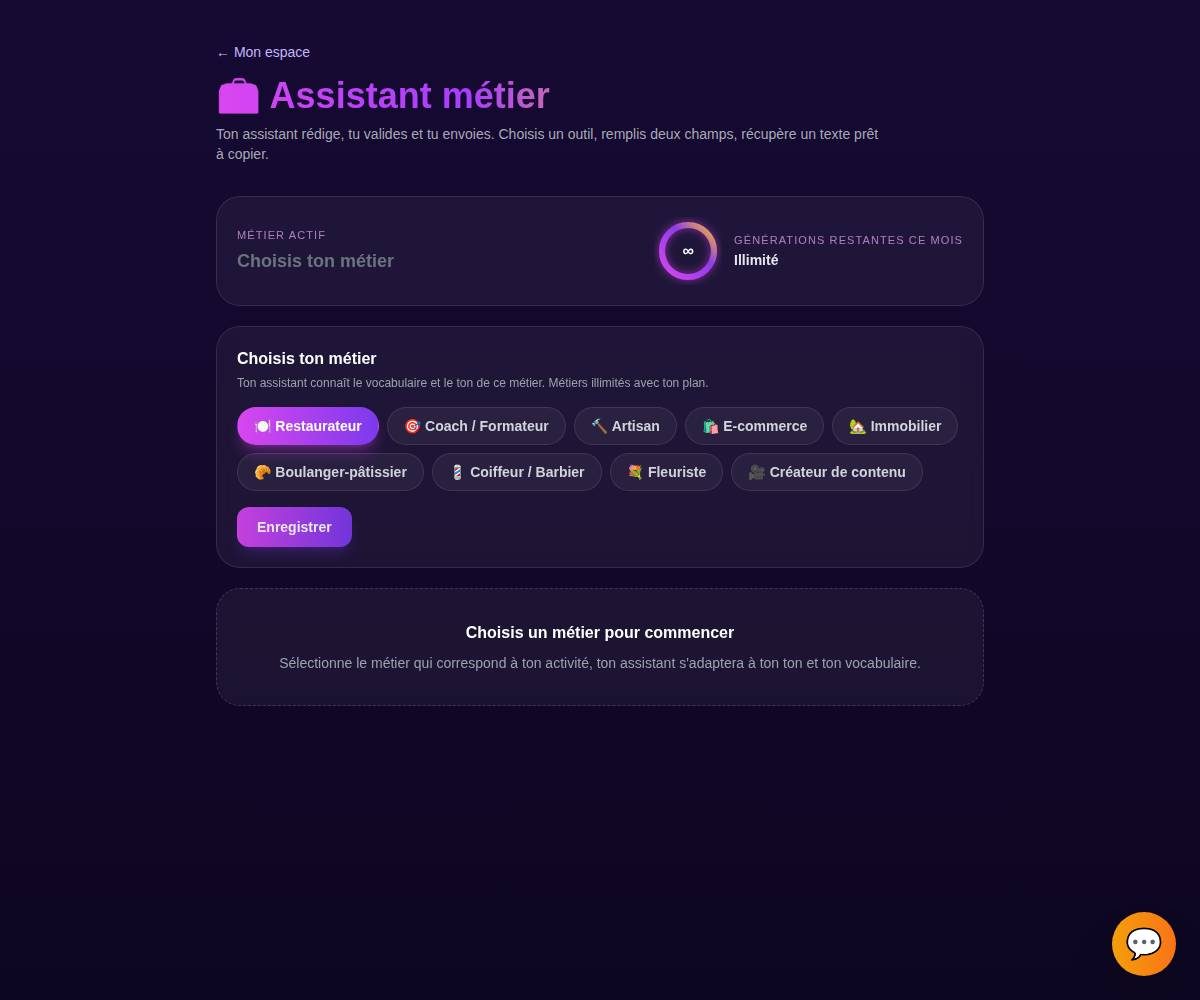
Tip. Le compteur de quota en haut vous montre combien de générations il vous reste ce mois-ci. Chaque génération en consomme une, quel que soit l'outil.
Choisir l'onglet « Publication »
Dans l'Assistant métier, ouvre l'onglet Publication. Chaque onglet correspond à un outil de rédaction dédié.
Donner votre sujet ou votre brief
Expliquez en quelques mots ce que vous voulez publier : le sujet (une nouveauté, une promo, une coulisse), le réseau visé et le ton souhaité. Pas besoin de rédiger, l'agent transforme votre brief en post complet.
Ton brief
Nouvelle fournée de cookies au chocolat, dispo samedi matin. Pour Instagram.
Le post proposé
« Ça sent bon le week-end ! 🍪 Nouvelle fournée de cookies au chocolat samedi matin, encore tièdes à l'ouverture. On vous garde les premiers ? #cookies #faitmaison »
Tip. Précisez le réseau (Instagram, Facebook, LinkedIn) : l'agent adapte la longueur, le style et les hashtags à la plateforme.
Générer les variantes
Cliquez sur Générer. L'agent vous propose plusieurs variantes en quelques secondes, pour que vous choisissiez celle qui vous ressemble le plus.
Tip. Pas convaincu par une variante ? Ce n'est qu'un point de départ, vous allez pouvoir l'ajuster à l'étape suivante.
Copier, régénérer ou ajuster le ton
Une fois la bonne variante repérée, vous pouvez :
- Copier le texte en un clic.
- Régénérer pour de nouvelles propositions.
- Ajuster le ton : plus court, plus chaleureux, plus direct.
Il ne vous reste plus qu'à utiliser le texte, en le collant dans votre publication Instagram, Facebook ou LinkedIn.
Tip. Vous gardez toujours le dernier mot. Rien n'est envoyé ni publié automatiquement, l'agent vous prépare le texte, c'est vous qui décidez quand et où l'utiliser.
Exemples par métier
Un usage court et crédible de l'outil, quel que soit votre métier.
« Annoncer le plat du jour et l'ambiance du soir »
« Partager un conseil motivation en début de semaine »
« Montrer un chantier avant et après en photos »
« Lancer une nouveauté avec un code promo limité »
« Mettre en avant un nouveau bien à visiter »
« Annoncer la fournée spéciale du week-end »
« Présenter une transformation couleur du jour »
« Annoncer la collection de bouquets de la Fête des mères »
« Raconter les coulisses de la création d'une pièce »
Tips bonus
Un post, un objectif
Dis à l'agent ce que vous voulez (informer, faire venir, vendre). Un post au but clair marche mieux qu'un message qui essaie de tout dire à la fois.
Adaptez au réseau
Précise le réseau visé (Instagram, Facebook, LinkedIn). Le ton, la longueur et les hashtags ne se jouent pas pareil d'une plateforme à l'autre.
Ajoute un appel à l'action
Termine par une invitation simple (réserve, commente, passe nous voir). C'est ce qui transforme une jolie publication en résultat concret.
Reste vous-même
Ajuste le ton jusqu'à retrouver votre façon de parler. Sur les réseaux, l'authenticité crée plus d'engagement qu'un post trop lisse.
Prêt à publier sur vos réseaux sans y passer des heures ?
L'Assistant métier est inclus dans votre abonnement. Découvre les packs pensés pour votre métier, ou lance votre essai.