Rédiger un message de RDV
L'outil Message de RDV rédige pour vous un message clair pour confirmer, reporter ou rappeler un rendez-vous. Il rédige le texte : il ne gère pas votre agenda et ne bloque aucun créneau. Vous le trouvez dans votre Espace client, via Dashboard, puis Assistant métier.
À noter. L'Assistant métier est inclus dans votre abonnement. Chaque génération consomme 1 du quota mensuel de votre plan.
Ouvrir l'Assistant métier et sélectionner votre métier
Rendez-vous dans votre Espace client, via Dashboard, puis Assistant métier. Avant tout, sélectionnez votre métier dans la liste et cliquez sur Enregistrer. C'est ce qui permet à l'agent d'écrire avec le vocabulaire et le ton de votre secteur.
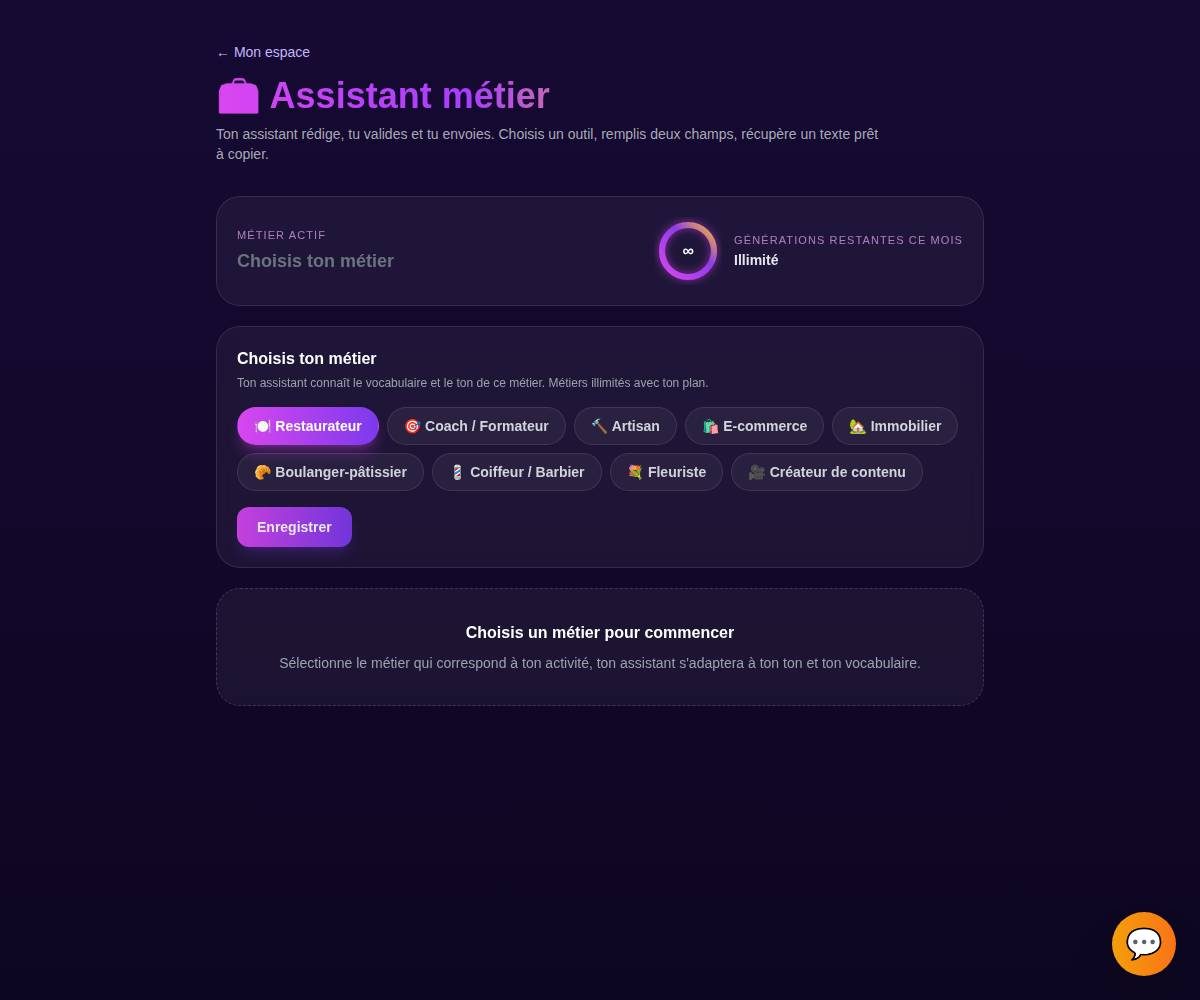
Tip. Le compteur de quota en haut vous montre combien de générations il vous reste ce mois-ci. Chaque génération en consomme une, quel que soit l'outil.
Choisir l'onglet « Message de RDV »
Dans l'Assistant métier, ouvre l'onglet Message de RDV. Chaque onglet correspond à un outil de rédaction dédié.
Choisir le type de message et indiquer la date
Choisissez d'abord ce que vous voulez faire, puis indique la date, l'heure et le lieu du rendez-vous :
- Confirmer un rendez-vous à venir.
- Reporter vers un nouveau créneau.
- Rappeler un rendez-vous proche.
Ce que vous choisissez
Rappeler · rendez-vous demain à 14h, salon coiffure.
Le message proposé
« Bonjour ! Petit rappel de votre rendez-vous demain à 14h au salon. Hâte de vous voir, à demain ! »
Tip. Soyez précis sur la date et l'heure : c'est l'info que votre client doit retrouver d'un coup d'œil dans le message.
Générer les variantes
Cliquez sur Générer. L'agent vous propose plusieurs variantes en quelques secondes, pour que vous choisissiez celle qui vous ressemble le plus.
Tip. Pas convaincu par une variante ? Ce n'est qu'un point de départ, vous allez pouvoir l'ajuster à l'étape suivante.
Copier, régénérer ou ajuster le ton
Une fois la bonne variante repérée, vous pouvez :
- Copier le texte en un clic.
- Régénérer pour de nouvelles propositions.
- Ajuster le ton : plus court, plus chaleureux, plus direct.
Il ne vous reste plus qu'à utiliser le texte, en le collant dans votre SMS, votre email ou votre messagerie.
Tip. Vous gardez toujours le dernier mot. Rien n'est envoyé ni publié automatiquement, l'agent vous prépare le texte, c'est vous qui décidez quand et où l'utiliser.
Exemples par métier
Un usage court et crédible de l'outil, quel que soit votre métier.
« Confirmer une réservation de table pour samedi soir »
« Rappeler une séance de coaching prévue demain matin »
« Reporter une intervention à cause d'un imprévu »
« Confirmer un créneau de retrait de commande en boutique »
« Rappeler une visite de bien prévue en fin de journée »
« Confirmer le retrait d'une commande de pièce montée »
« Rappeler un rendez-vous couleur à une cliente »
« Reporter une livraison de composition florale »
« Confirmer un point projet en visio avec un client »
Tips bonus
Rappelle la veille
Un message de rappel bien tourné, envoyé la veille, réduit nettement les oublis et les absences. Générez-le en deux clics et programme votre envoi.
Un report, ça se soigne
Reporter un RDV peut agacer. Ajustez le ton pour t'excuser simplement et proposer un nouveau créneau, le client retient l'attention, pas le contretemps.
Mets toujours la date en clair
Indique le jour, l'heure et le lieu à l'agent pour qu'ils apparaissent noir sur blanc dans le message. Un rappel sans date précise ne sert à rien.
Le texte seulement, pas l'agenda
L'outil rédige le message ; il ne bloque pas de créneau et n'envoie rien tout seul. Vous copiez le texte et vous l'envoyez quand vous le décidez.
Prêt à gérer vos messages de RDV en un clin d'œil ?
L'Assistant métier est inclus dans votre abonnement. Découvre les packs pensés pour votre métier, ou lance votre essai.