Rédiger une description produit
L'outil Description produit rédige pour vous une description vendeuse de votre produit ou de votre prestation, prête à coller sur votre fiche ou votre boutique. Vous le trouvez dans votre Espace client, via Dashboard, puis Assistant métier.
À noter. L'Assistant métier est inclus dans votre abonnement. Chaque génération consomme 1 du quota mensuel de votre plan.
Ouvrir l'Assistant métier et sélectionner votre métier
Rendez-vous dans votre Espace client, via Dashboard, puis Assistant métier. Avant tout, sélectionnez votre métier dans la liste et cliquez sur Enregistrer. C'est ce qui permet à l'agent d'écrire avec le vocabulaire et le ton de votre secteur.
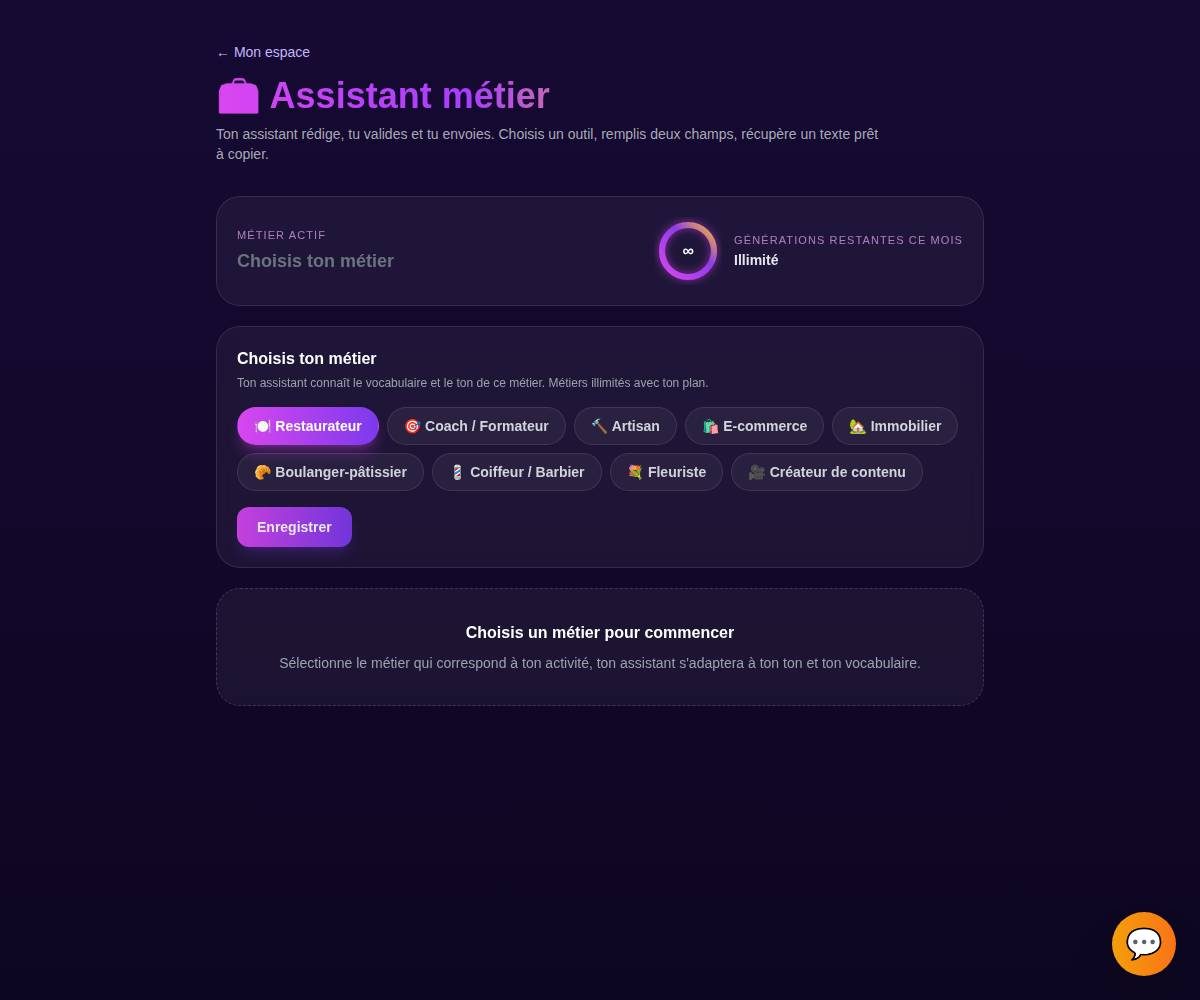
Tip. Le compteur de quota en haut vous montre combien de générations il vous reste ce mois-ci. Chaque génération en consomme une, quel que soit l'outil.
Choisir l'onglet « Description produit »
Dans l'Assistant métier, ouvre l'onglet Description produit. Chaque onglet correspond à un outil de rédaction dédié.
Décrire votre produit
Donnez à l'agent les infos clés : ce qu'est le produit ou la prestation, ce qui le rend unique (matière, origine, savoir-faire), pour qui il est fait et son prix si vous voulez l'afficher. Quelques mots-clés suffisent, l'agent structure le reste.
Ce que vous décrivez
Bougie parfumée, cire de soja, senteur figue, faite main en petite série.
La description proposée
« Une bougie faite main à la cire de soja, tout en douceur, qui diffuse une senteur figue gourmande. Petite série, pour une ambiance chaleureuse et une combustion propre. »
Tip. Donnez un ou deux détails concrets (fait main, local, sur mesure) : ce sont eux qui rendent la description crédible et différente d'une fiche passe-partout.
Générer les variantes
Cliquez sur Générer. L'agent vous propose plusieurs variantes en quelques secondes, pour que vous choisissiez celle qui vous ressemble le plus.
Tip. Pas convaincu par une variante ? Ce n'est qu'un point de départ, vous allez pouvoir l'ajuster à l'étape suivante.
Copier, régénérer ou ajuster le ton
Une fois la bonne variante repérée, vous pouvez :
- Copier le texte en un clic.
- Régénérer pour de nouvelles propositions.
- Ajuster le ton : plus court, plus chaleureux, plus direct.
Il ne vous reste plus qu'à utiliser le texte, en le collant sur votre fiche produit, votre boutique en ligne ou votre catalogue.
Tip. Vous gardez toujours le dernier mot. Rien n'est envoyé ni publié automatiquement, l'agent vous prépare le texte, c'est vous qui décidez quand et où l'utiliser.
Exemples par métier
Un usage court et crédible de l'outil, quel que soit votre métier.
« Décrire le nouveau menu dégustation de la saison »
« Décrire une offre de coaching en ligne sur 8 semaines »
« Décrire une prestation de pose de parquet sur mesure »
« Décrire un coffret cadeau à ajouter à la boutique »
« Décrire un bien à mettre en ligne sur l'annonce »
« Décrire une nouvelle brioche pour la vitrine et le site »
« Décrire un forfait soin et brushing en salon »
« Décrire un bouquet signature pour la boutique en ligne »
« Décrire une pièce faite main pour une fiche Etsy »
Tips bonus
Parle bénéfices, pas caractéristiques
Une bonne fiche dit ce que le client y gagne, pas seulement ce que c'est. Donnez les détails techniques à l'agent, il les traduit en arguments qui donnent envie.
Adapte la longueur au canal
Une fiche e-commerce, une carte de menu ou une annonce n'ont pas le même format. Ajustez le ton vers « plus court » pour une accroche, plus détaillé pour une fiche complète.
Sois honnête sur le produit
Décrivez ce que vous offrez vraiment. Une description juste et concrète convertit mieux et t'évite les déceptions et les retours.
Garde une base réutilisable
Génère une version, ajuste-la, garde-la comme modèle. Vous gagnez un temps fou sur vos prochaines fiches de la même famille.
Prêt à écrire des fiches qui donnent envie ?
L'Assistant métier est inclus dans votre abonnement. Découvre les packs pensés pour votre métier, ou lance votre essai.